Putting a file somewhere it can be found
Drive is file storage where sharing is actually enforced — fifteen separate permissions rather than one "can access files" switch. This is the path a document takes: in, shared, commented on, revised, and occasionally rescued.
When you have done this: A file that the right people can open, that shows who else can, and whose earlier version you can still get back.
- 01
Start from the folder, not the file
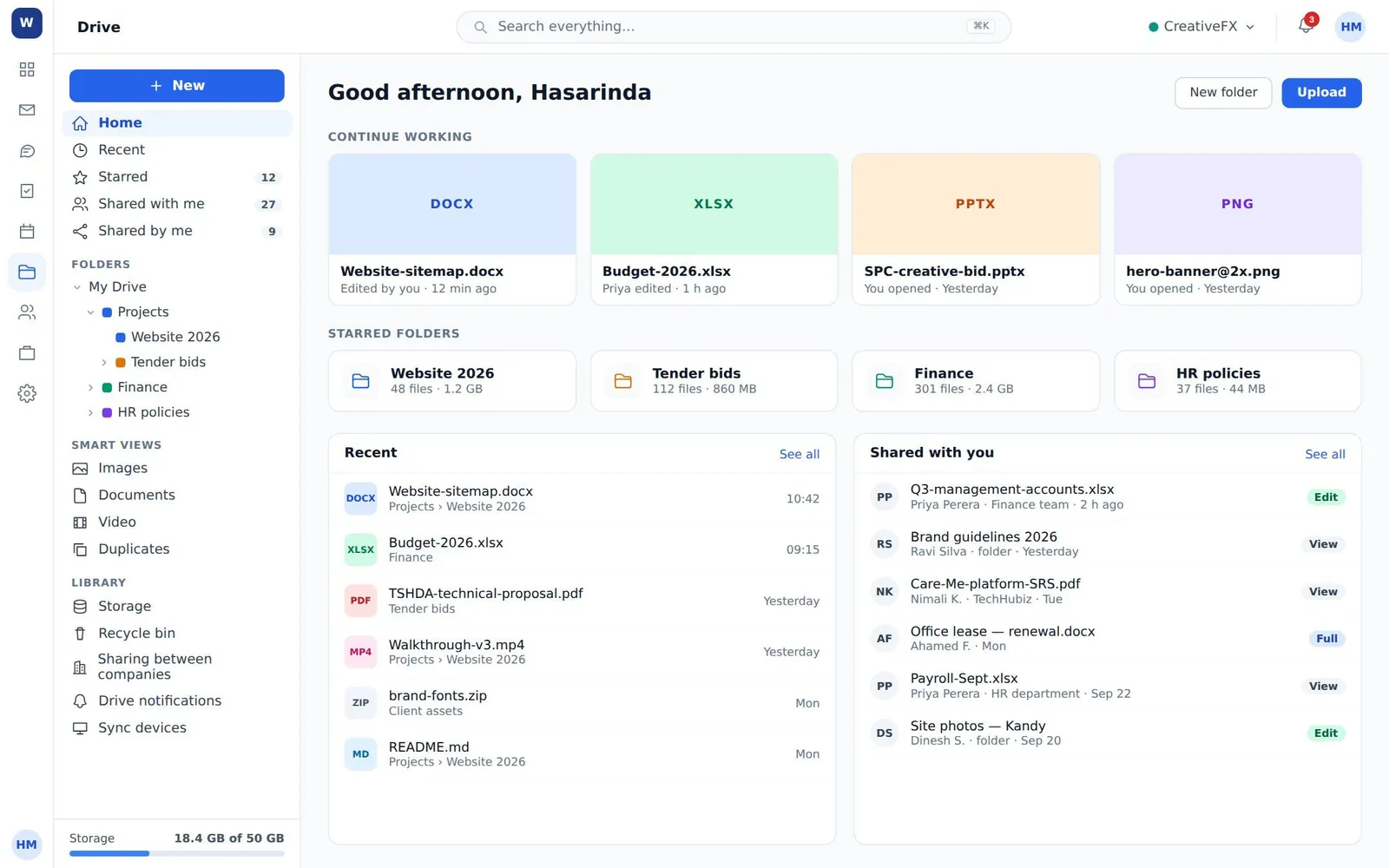
Drive home is folders, recent files and what is shared with you. Decide where something belongs before you upload it: reorganising a drive people have already linked to breaks the links they saved.
- 02
Get files in
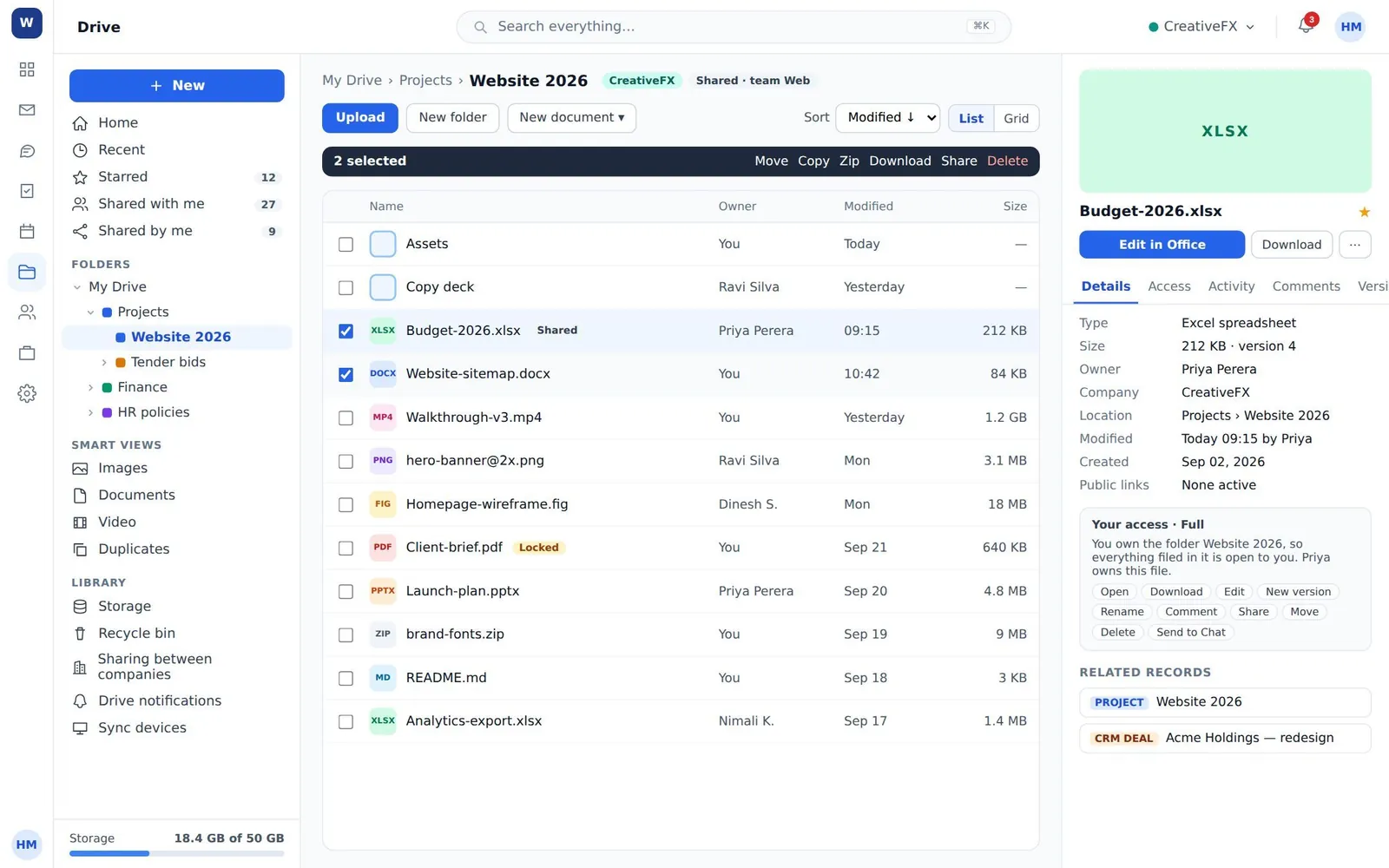
Upload files, drag them onto the folder, or start something new in place — New folder, New document, New spreadsheet. Download from URL queues a fetch from somewhere else rather than making you wait for it.
- 03
Share with a team, not with its members
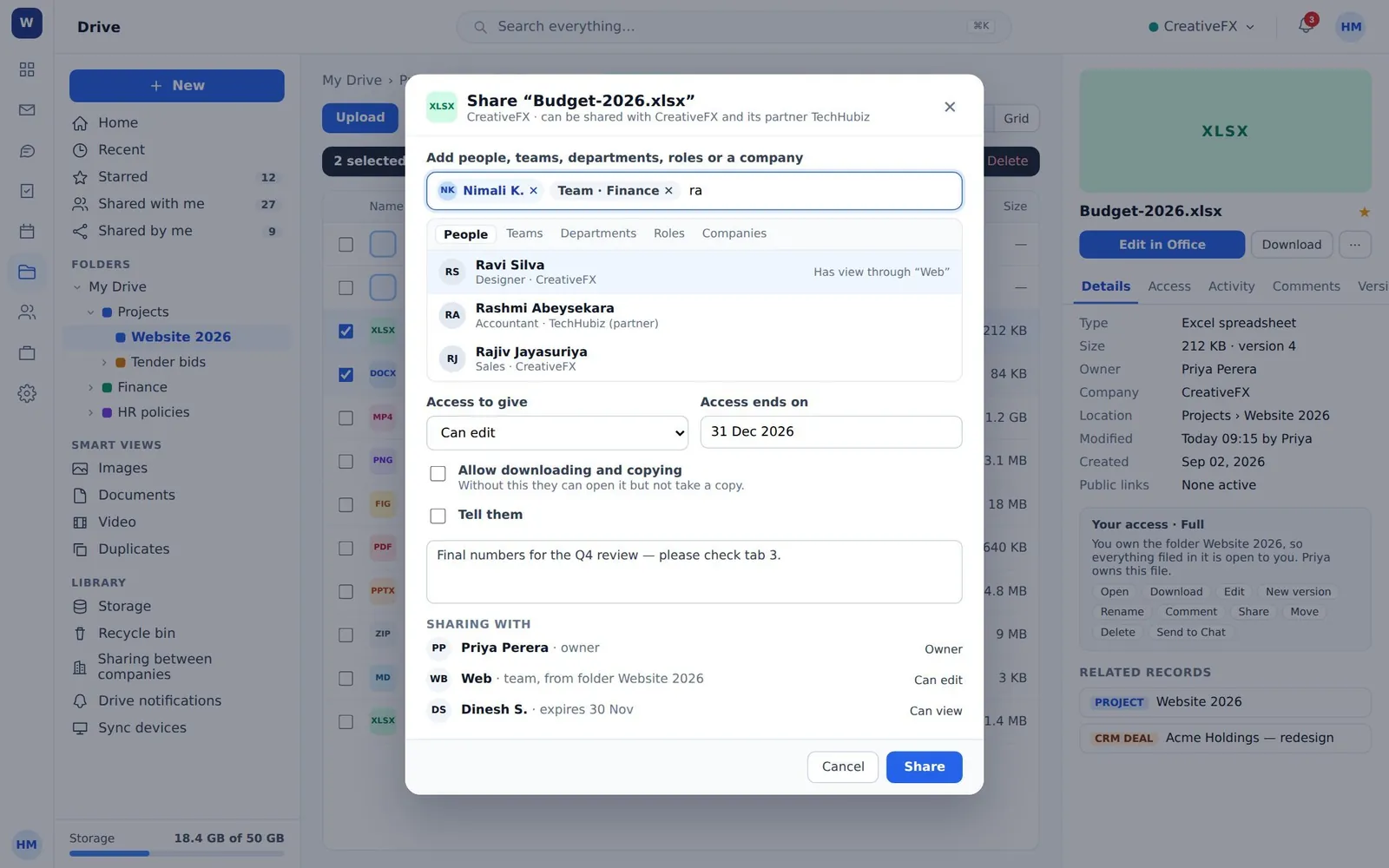
People, teams, departments, roles or a whole company. Share with the team: access then follows the team when somebody joins or leaves it, which is the difference between a permission set and a permission problem.
- 04
Check who can open it, and why
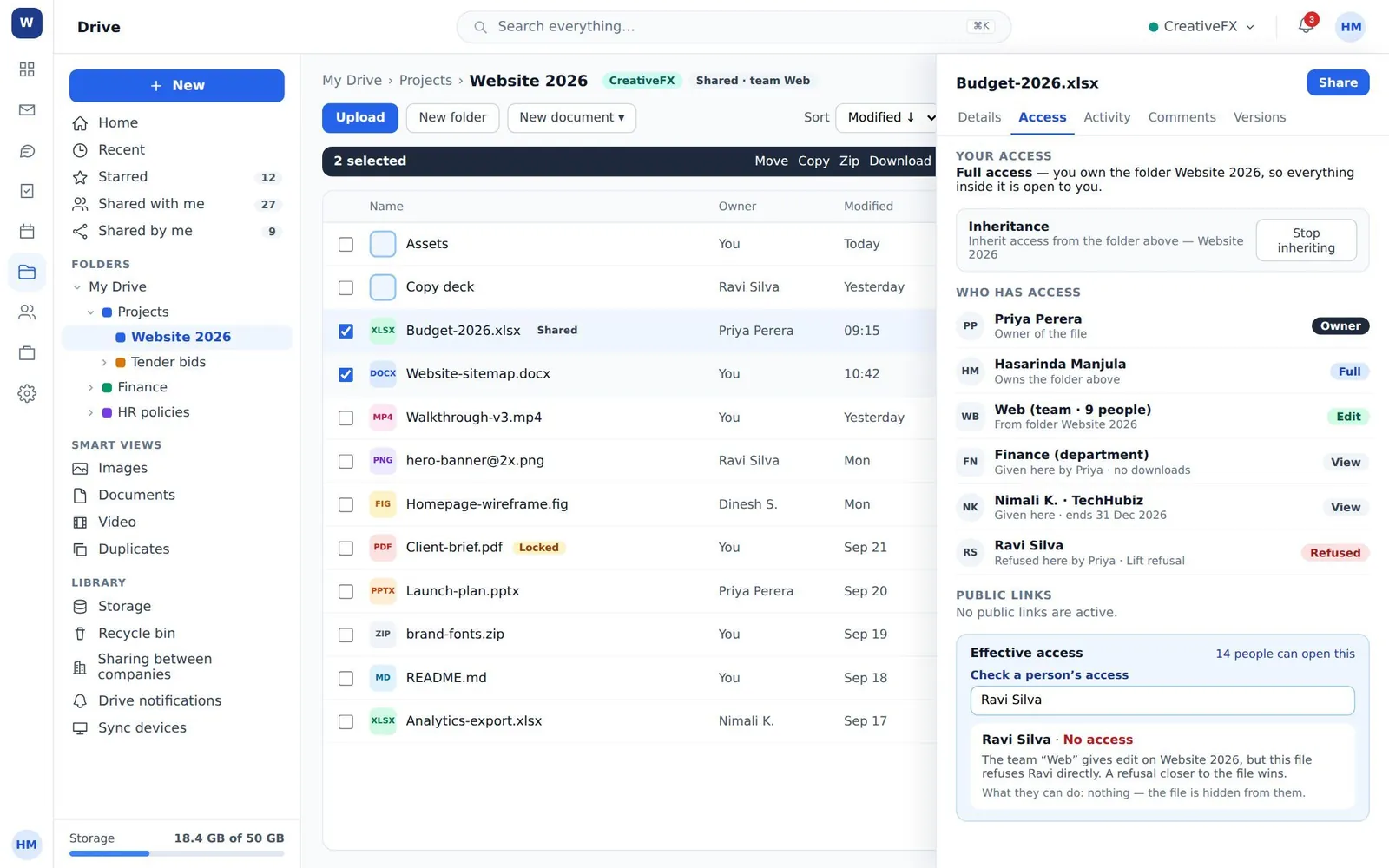
The access view answers the question audits actually ask — not "who did you share it with" but "who can open this, and where does that come from". Inherited access is the kind that surprises people.
- 05
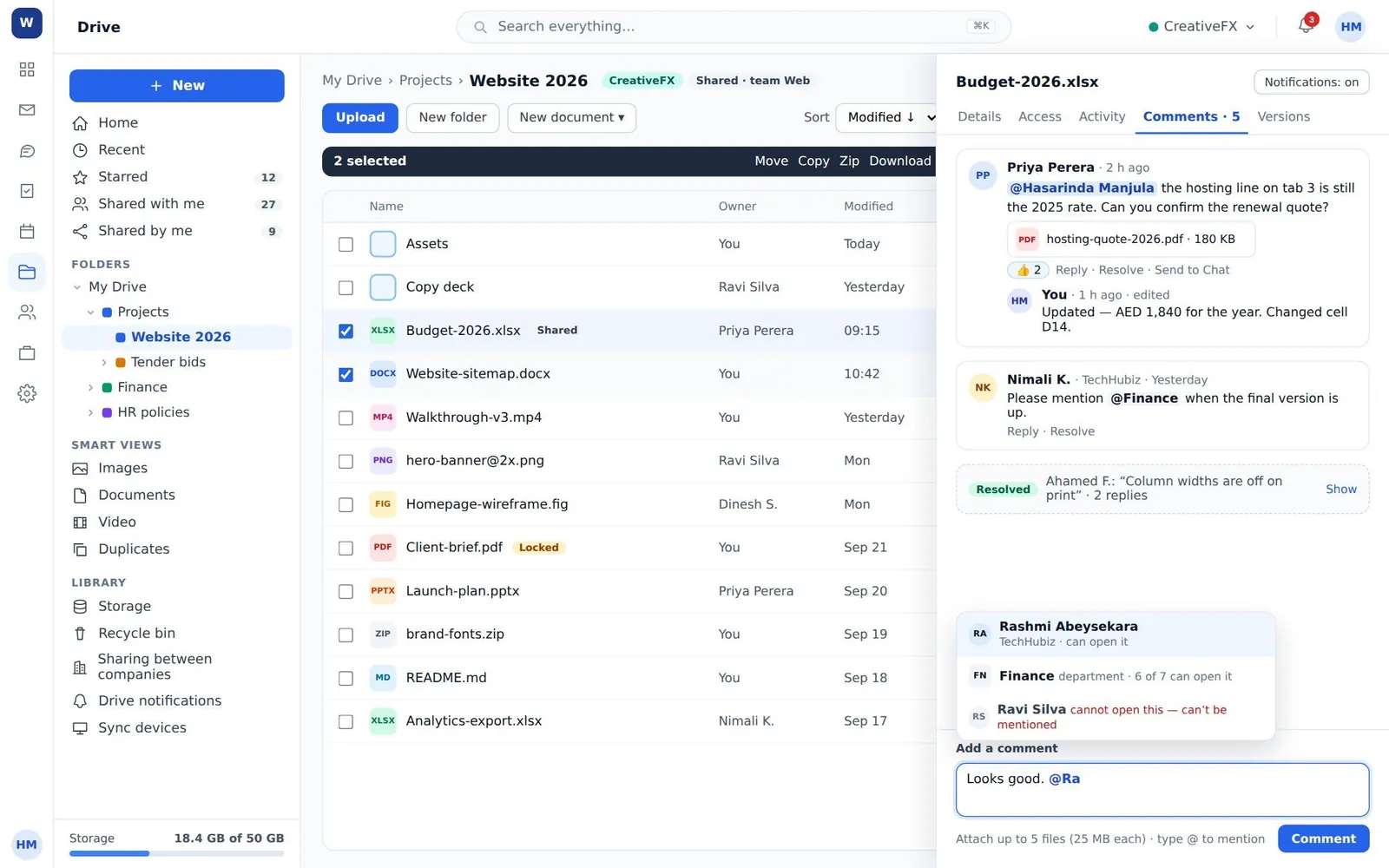
Discuss it on the file
Comments, replies and mentions live on the file and the folder. A conversation about a document that happens in email is a conversation the next person to open the document will never see.
- 06
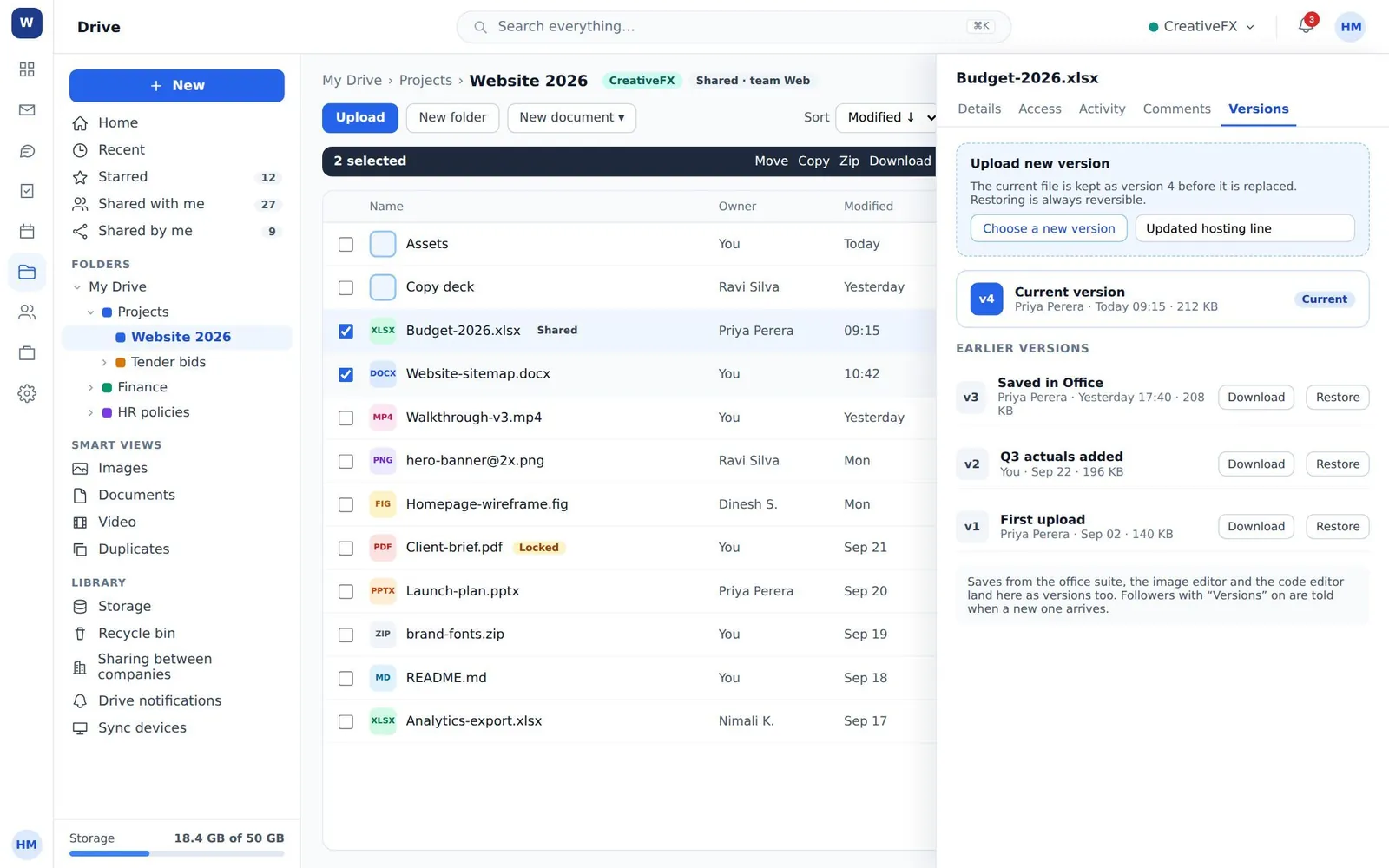
Revise, do not re-upload
A new version keeps the history, the link and the comments. A new file keeps none of them. This is the single habit that decides whether a drive is usable in a year.
- 07
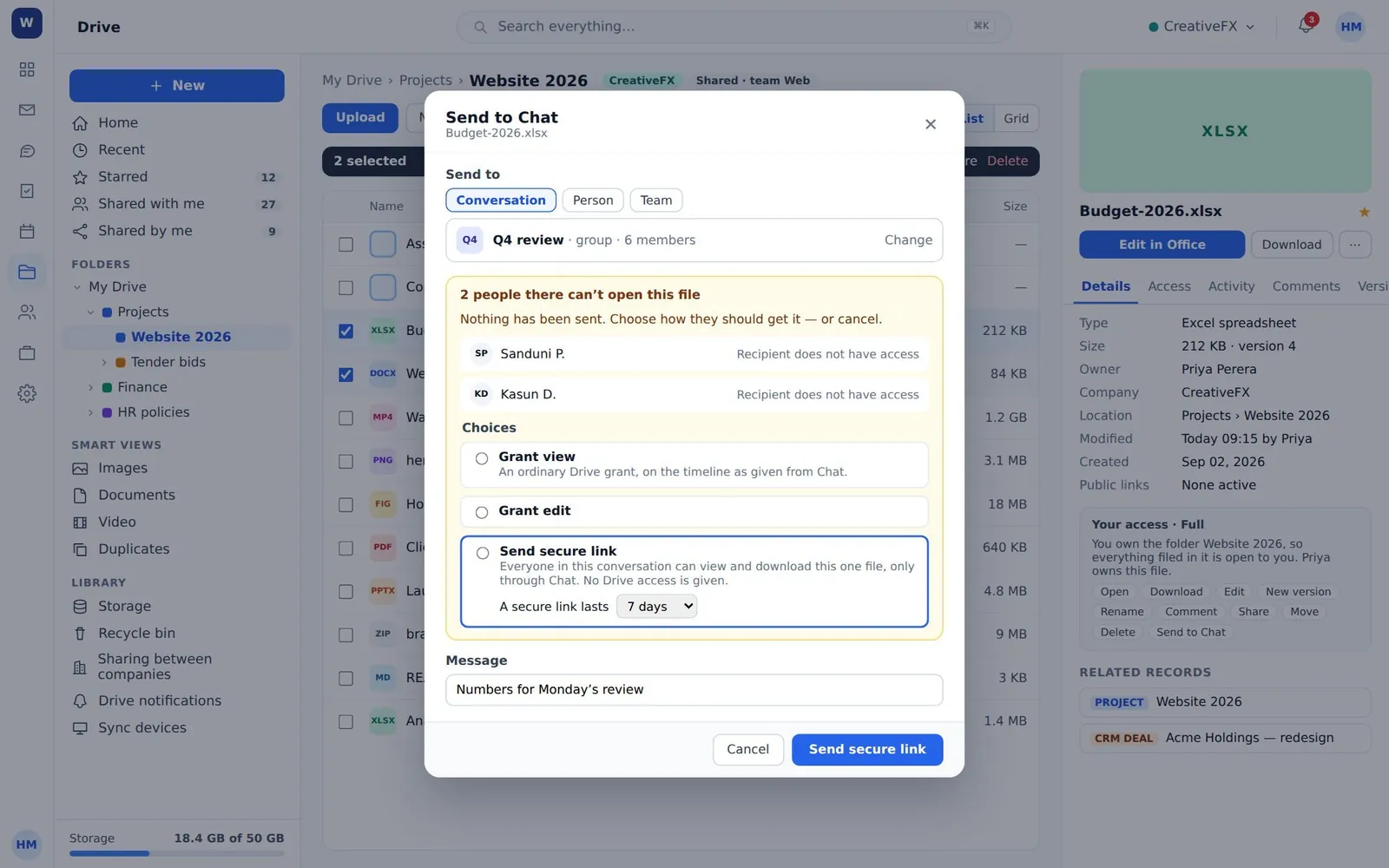
Send it into a conversation
Send a file straight into Chat and it stays one file with its permissions intact, instead of becoming an attachment that has escaped them.
- 08
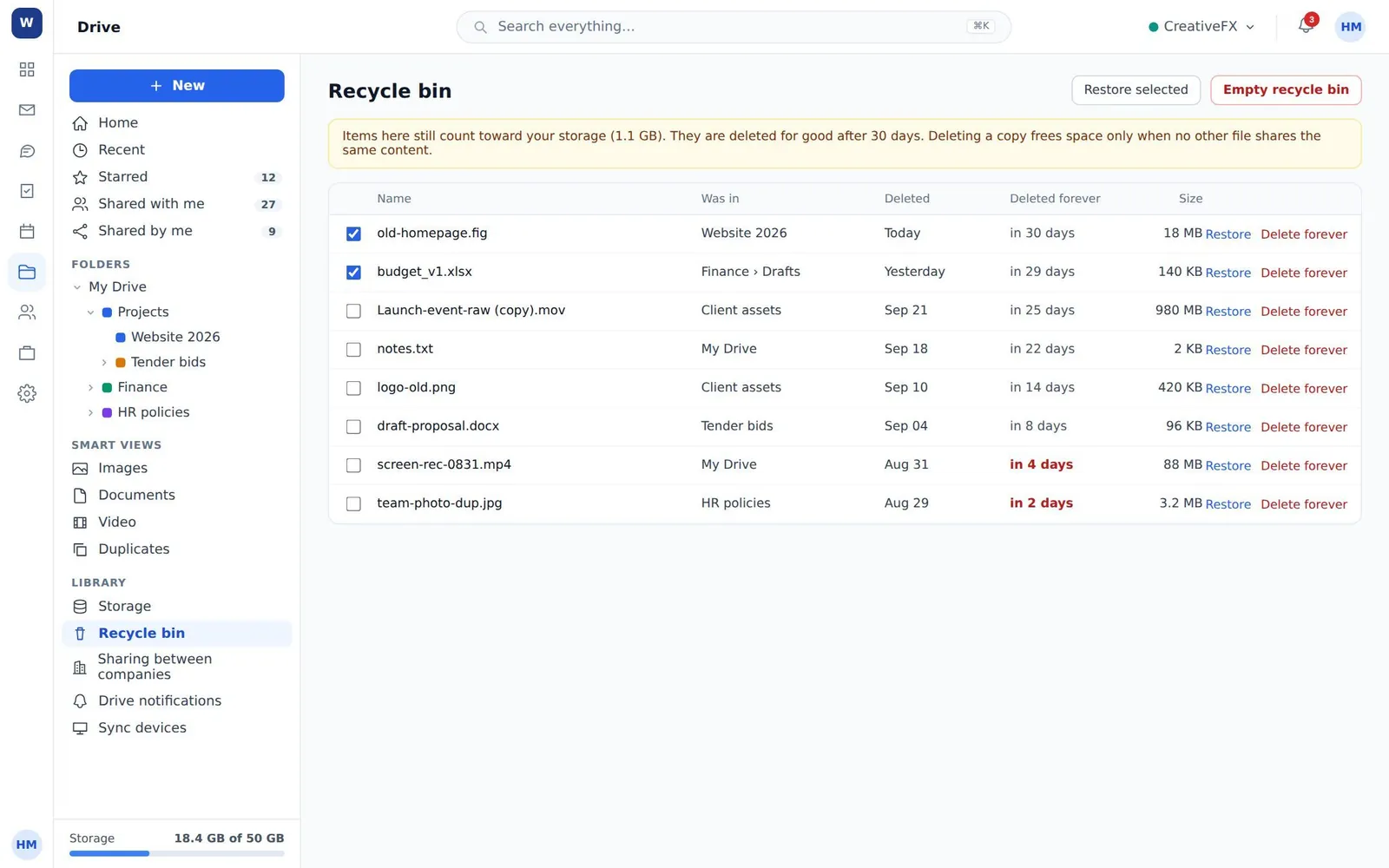
Get it back
Deleted items go to the recycle bin and are restored from it. Tell people this exists — it is the answer to almost every "it has gone" report, and the ones who do not know assume the worst.
What people get wrong
- Downloading is governed separately from viewing. Somebody who can read a file may not be able to take a copy away, and that is deliberate rather than a fault.
- Revoking access is its own permission and the one that gets forgotten. Review shares when somebody changes role, not only when they leave.